
Adaptive transcoding
Adaptive transcoding is a Fregata-exclusive feature — it does not exist in upstream Frigate. It gives both recordings and live camera streams a ladder of quality rungs, transcoded on the Media Engine, so a stream that is too heavy for the connection has something lighter to fall back to.
The two tiers choose a rung differently, and the difference is deliberate:
- Recordings are served as an HTTP Live Streaming (HLS) adaptive bitrate ladder, and the player selects automatically — it takes the highest-quality rung the viewer’s connection can sustain without buffering, dropping and recovering on its own as the connection changes.
- Live is not HLS and does not switch on its own. Each rung is offered in the stream dropdown and the viewer picks one. See Live transcoding below for why.
The primary use case is remote and mobile viewing. A 4K or even a typical 1080p high-bitrate recording stream is completely unwatchable on a weak LTE or 5G signal — the stream simply won’t load at all, or buffers every few seconds. Watching a recording, Fregata automatically drops to a lower quality, which loads cleanly even on one bar of cellular, and steps back up to full quality once the connection improves. Watching live, the same rungs are there to switch to by hand.
All transcoding runs entirely on the Apple Silicon dedicated Media Engine via VideoToolbox — zero CPU. Everything is off by default and must be enabled in Settings or in your config file.
Quick Start
Section titled “Quick Start”Turn on adaptive transcoding in Settings, or add the following to config.yml, and restart Fregata.
- In the web UI, go to Settings → Fregata (macOS) → Global configuration → Adaptive transcoding.
- Turn on Enable adaptive transcoding (recordings).
- Turn on Enable live-view transcoding if you also want live-view rungs.
- Set Starting rung height to
720to start at 720p instead of the lowest rung. - Leave Rungs and LAN networks at their defaults, or edit them (see LAN bypass).
- Click Save, then Restart when the page asks.
adaptive_transcoding: enabled: true live: true # also enable live stream transcoding starting_rung_height: 720 # start at 720p, not the lowest rung # rungs and lan_networks keep their defaults; see the full example belowHow it works for recorded clips
Section titled “How it works for recorded clips”When adaptive transcoding is enabled:
- ffprobe inspects the camera’s stream once at startup and caches the result — dimensions, codec, bitrate.
- The ABR engine builds an HLS segment cache on the RAM disk for each active rung.
- The top rung is always served as original quality if bandwidth allows — free, no encode cycles at all.
- Lower rungs are transcoded on the Media Engine: VideoToolbox hardware decode and encode.
- By default streams of recordings always start on the lowest rung. This can be
overridden by
starting_rung_height. - The hls.js player in the web UI reads the HLS master playlist and switches rungs in real time as it measures throughput.
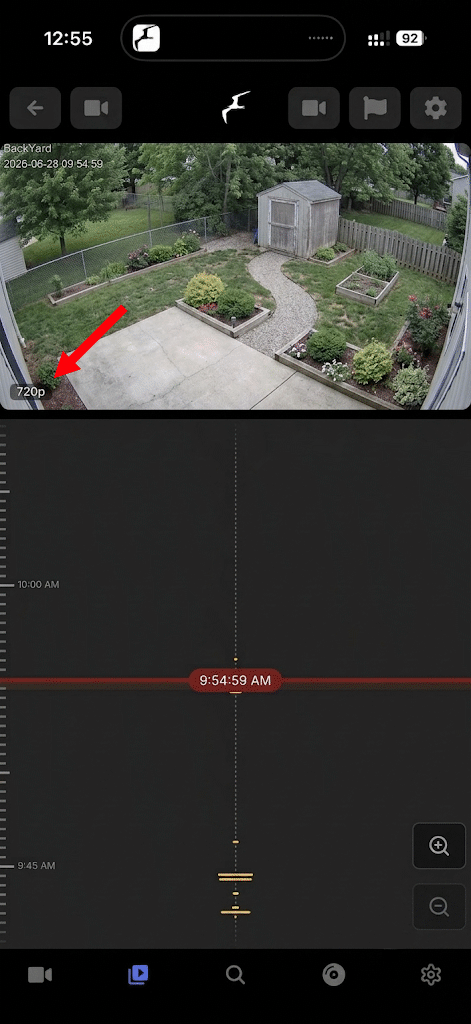
- When adaptive transcoding is active, you will see the currently playing quality as a small bubble in the lower left corner of the video stream. If you do not see this, original quality is being played.
LAN bypass (recorded clips only)
Section titled “LAN bypass (recorded clips only)”Clients whose IP falls within lan_networks (default: all private, loopback, and
link-local ranges) receive the original source stream, bypassing the ABR ladder
entirely. On a local network you have more than enough bandwidth; transcoding would
not add any benefit.
Set lan_networks: [] (an empty LAN networks list in Settings) to disable the bypass and force the ABR ladder for all clients.
Live transcoding
Section titled “Live transcoding”Setting live: true under adaptive_transcoding also enables adaptive rungs for the
live view.
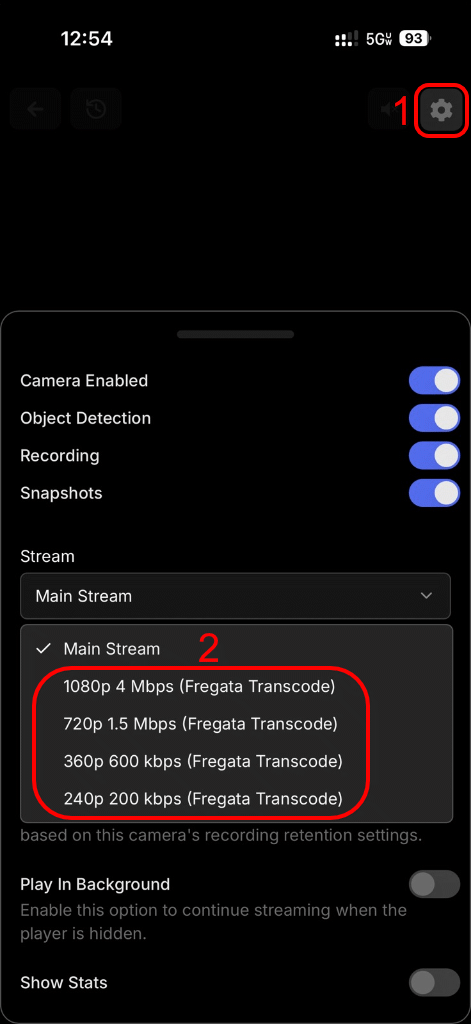
The stream dropdown in the live view lists each configured rung as a selectable option (e.g. “720p 1500 kbps (Fregata Transcode)”). For live viewing the stream does NOT currently switch qualities automatically, the selection is manual. This is due to the fact that live streams are, well, live. There is no buffer to determine if we are draining the buffer faster than we can replenish it to signal that we need to drop the quality.
Live transcoding is a separate opt-in from recordings ABR (live: true): live rungs are
created as go2rtc streams at startup. They consume no resources until played.
Requires the camera to be set up to be restreamed via go2rtc (default).
Enabling adaptive transcoding
Section titled “Enabling adaptive transcoding”Minimal global AND per-camera config:
For every camera
- Go to Settings → Fregata (macOS) → Global configuration → Adaptive transcoding.
- Turn on Enable adaptive transcoding, and Enable live-view transcoding if you want live-view rungs.
- Click Save, then Restart when the page asks.
For one camera (opt in, or opt out of a global setting)
- Go to Settings → Fregata (macOS) → Camera configuration → Adaptive transcoding and pick the camera in the selector at the top.
- Set Enable adaptive transcoding (and Enable live-view transcoding) for that camera.
- Click Save, then Restart when the page asks.
# All cameras use transcoding for recordings by defaultadaptive_transcoding:  enabled: true  live: true           # live view rungs (optional, separate opt-in)
cameras:  indoor_cam:    adaptive_transcoding:      enabled: false       # this camera opts out
Or set per-camera:
cameras: front_yard: adaptive_transcoding: enabled: true # recordings ABR live: true # live view rungs (optional, separate opt-in)Restart Fregata after changing config.yml.
Configuration reference
Section titled “Configuration reference”Per-camera fields
Section titled “Per-camera fields”These fields can be set at the top level (adaptive_transcoding:) to apply a default to
every camera, or per-camera (cameras.<name>.adaptive_transcoding:) to override.
| Field | Settings label | Type | Default | Description |
|---|---|---|---|---|
enabled |
Enable adaptive transcoding | bool | false |
Enable recordings ABR for this camera. |
live |
Enable live-view transcoding | bool | false |
Enable live-view rungs. Does not follow enabled — must be set explicitly. |
starting_rung_height |
Starting rung height | int or null | null |
Start playback on the highest configured rung whose height is ≤ this value. null starts at the lowest rung — safest for variable connections. |
rungs |
Rungs | list | See below | The ABR ladder, highest quality first. Each entry: height (px), bitrate (kbps). The engine will never upscale, if you have a 1080p rung listed by have a single camera that maxes out at 720p, the 1080p rung will be disabled for that camera. |
Default rung ladder:
| Height | Bitrate |
|---|---|
| 1080p | 4000 kbps |
| 720p | 1500 kbps |
| 360p | 600 kbps |
Original quality is always served if bandwidth allows with no transcoding at all.
Global-only resource fields
Section titled “Global-only resource fields”These fields are honored only at the top-level adaptive_transcoding: block, not
per-camera.
| Field | Settings label | Type | Default | Description |
|---|---|---|---|---|
lan_networks |
LAN networks | list of CIDRs | Private/loopback/link-local | Clients in these ranges receive the original source stream. See LAN bypass above. |
Full annotated example
Section titled “Full annotated example”Every field in the example is on one of two pages. The top-level
adaptive_transcoding: block is Settings → Fregata (macOS) → Global
configuration → Adaptive transcoding. Each camera’s
adaptive_transcoding: block is Settings → Fregata (macOS) → Camera
configuration → Adaptive transcoding, with the camera chosen in the
selector at the top. LAN networks exists only on the global page.
adaptive_transcoding:  enabled: true  live: true    # enable live stream transcoding  lan_networks:    # adaptive transcoding (recorded clips) will be disabled all connections from IPs in any of these local LAN ranges    - "127.0.0.0/8"    - "10.0.0.0/8"    - "172.16.0.0/12"    - "192.168.0.0/16"  rungs:    - height: 1080      bitrate: 4000    - height: 720      bitrate: 1500    - height: 360      bitrate: 600  starting_rung_height: 720    # start at 720p, not the lowest rung
cameras:  front_yard:    adaptive_transcoding:      enabled: true      live: true      starting_rung_height: 720    # start at 720p, not the lowest rung  indoor_cam:    adaptive_transcoding:      enabled: true                # recording transcode only; live stays off
Hardware requirements
Section titled “Hardware requirements”Adaptive transcoding runs exclusively on the Apple Silicon Media Engine via VideoToolbox. It is macOS-only and is not available in upstream Frigate-on-Docker. Any M-series chip (M1 or later) supports it; no special hardware beyond Fregata’s system requirements is needed.
Debugging
Section titled “Debugging”Set FREGATA_ABR_DEBUG=1 (Tray → Settings → Environment Variables, then restart) to
enable verbose ABR diagnostics in the Frigate log. The player logs rung switches,
bandwidth estimates, and segment timing.
For recordings, when adaptive transcoding is active, you will see the current quality in a small bubble in the bottom left corner of the video stream (see screenshots above). If you do not see this bubble the original quality video is being played.
Live stream transcode streams must be selected manually from the stream dropdown for that camera but they also show a bubble in the bottom left of the UI when a non-original quality stream is being played.
To further verify adaptive transcoding is active, open the recordings view for an enabled camera and watch the browser DevTools Network tab. You should see requests to:
/api/<camera>/start/<s>/end/<e>/adaptive/master.m3u8/api/<camera>/start/<s>/end/<e>/adaptive/rung/<height>.m3u8/api/<camera>/start/<s>/end/<e>/adaptive/rung/<height>/<seq>.tsIf you see /vod/ requests instead, adaptive transcoding is not active for that camera —
check that enabled: true is set and that Fregata was restarted after the config change.