
Installation
System requirements
Section titled “System requirements”- macOS 14 (Sonoma) or later. Older versions don’t expose the CoreML / Apple Neural Engine surface Fregata’s detector targets.
- Apple Silicon (M1 or newer). Intel Macs aren’t supported — Fregata’s detection path runs on the ANE, which Intel chips don’t have.
- About 2 GB free disk space for the app itself and the bundled
detection model. Camera recordings live wherever you point Fregata
(default
~/Fregata/media/); size depends on your retention policy — see Recordings & retention. - A wired or strong-wireless network path to your cameras. RTSP over Wi-Fi works but is sensitive to packet loss; Ethernet to the cameras is the boring, reliable choice.
Download
Section titled “Download”The latest version is at:
This URL always serves the most recent release. Specific versions are
kept at https://releases.fregata.app/Fregata-X.Y.Z.dmg if you need
to pin or re-download a known build.
Install
Section titled “Install”- Open the downloaded
.dmg. - Drag Fregata.app to the Applications folder.
- Eject the disk image.
- Launch Fregata from Applications (or Spotlight, or Launchpad).
The first launch will show a Gatekeeper prompt — Fregata is signed and notarized by 3rd Bit Labs, so the standard “Open” confirmation is the only gate. The app is not distributed through the Mac App Store; the App Store sandbox forbids spawning the helper processes (ffmpeg, nginx, go2rtc) Fregata relies on.
What happens on first launch
Section titled “What happens on first launch”You’ll see a small menu-bar icon (the Fregata mark in the top-right of the macOS menu bar) and a welcome wizard that walks you through:
- Granting local-network access — required so Fregata can reach your cameras over RTSP.
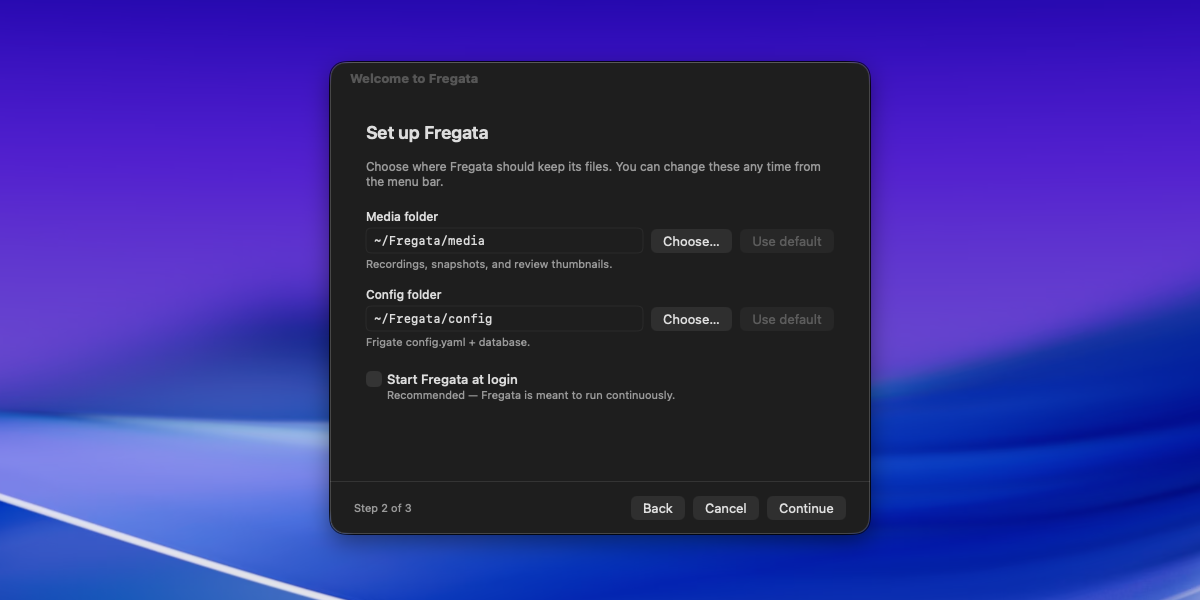
- Choosing where data lives — the config file and recordings. Defaults are
~/Fregata/config/and~/Fregata/media/. You can change these later from the tray’s Settings → Folders menu. - Choosing recording-buffer memory — Smart memory (tmpfs, recommended) or a Basic RAM disk for the few seconds of footage Fregata buffers before writing it to your media folder. See Performance — RAM-disk cache for the tradeoffs.
- Activation — entering a license key or starting a 30-day trial. See Activation for the walkthrough.
- Creating your dashboard sign-in — sets the password you’ll use to open the web dashboard. See Your dashboard sign-in below for the details — this is the one thing worth writing down before you click Done.
- Finding Fregata later — where the menu-bar icon lives, how to surface it if a full menu bar hides it, and an optional checkbox to also show a Dock icon. See Finding the menu-bar icon for the full walkthrough.
Fregata does not run as a system daemon; it runs as a regular macOS app that lives in your menu bar (optionally also in the Dock — see Finding the menu-bar icon). Quitting it via the tray menu stops recording and detection cleanly. If you want the app to launch on login, toggle Settings → Launch at Login in the tray menu.
Your dashboard sign-in
Section titled “Your dashboard sign-in”Fregata’s web dashboard — where you add cameras, watch live tiles, and review events — sits behind a login. The first-run wizard’s account step creates it for you:
- The username is
admin. - Fregata fills in a strong, random password. Use the eye icon to reveal it, the copy button to put it on your clipboard, or the regenerate button for a different one. You’re free to type your own instead — it just has to be at least 12 characters long.
Copy the password somewhere safe — a password manager is ideal —
before you click Done. You’ll need it the first time you open the
dashboard: choose Open Frigate Web UI (⌘O) from the tray and sign
in with admin and that password.
Finding or resetting the password
Section titled “Finding or resetting the password”Find it (only right after first start). The password is logged once,
when the account is created — so shortly after setup it’s still there: in
the tray choose Settings → Open Frigate Logs and search for
Password: for the banner line *** Password: <your password> (also
at ~/Fregata/logs/frigate/current). It is not re-logged on later
restarts, and the log is trimmed once it crosses ~5 MiB (the oldest
~2 MiB get chopped, ~3 MiB of tail is kept), so on anything but a
just-set-up install that line has usually scrolled out — reset it
instead (below).
Change it. Once you’re signed in, use the dashboard’s Settings → Users page.
Reset a forgotten one. If you’re locked out completely, have
Fregata mint a fresh password. Open ~/Fregata/config/config.yml and
add:
config.yml only. You are locked out of the web UI, so its Settings pages are not available.
auth: reset_admin_password: trueRestart Fregata (Restart Frigate in the tray). A new random
password is generated and freshly written to the log — read it right
after the restart with Settings → Open Frigate Logs in the tray. Then remove
those two lines (or set the value back to false); otherwise Fregata
mints and logs a new password on every start.